For the complete documentation index, see llms.txt. This page is also available as Markdown.

Raspberry Pi Camera V2 Integration

This guide takes a freshly built Cyclops device and enables a MIPI camera for the main video source. The commands are meant to be copy & paste, with only a few steps to get the camera running.

Before you start

Supported sensors

Sensor

--sensor value

Notes

IMX219 (Camera Module 2 / clones)

imx219

Default; flight-validated

IMX708 (Camera Module 3)

imx708

Autofocus module

IMX477 (HQ Camera)

imx477

Interchangeable-lens

OV9281 / IMX296 (global shutter)

ov9281 / imx296

Best for fast motion (no rolling-shutter "jello")

Other Pi-supported sensors generally work too — pass their overlay name to --sensor. Vendor sensors may need a vendor overlay, driver, or tuning file.

Software prerequisites

  • Ubuntu 24.04 on the Pi 5 (2GB) with Cyclops (v1.20.0) installed.

  • Vozilla (v2.8.0) on your GCS.

Step 1 — Connect the camera

Power off the Pi, then connect the MIPI camera into the CAM0 port on the Pi. Then power on the Pi.

Step 2 — Run the one-shot installer

On the Pi, run the installer:

This command defaults to the Camera Module 2 sensor (imx219) and expects the connection to be to the CAM0 port. Check the Install Script Flags section to see what flags are available for this script.

Pre-flight calibration

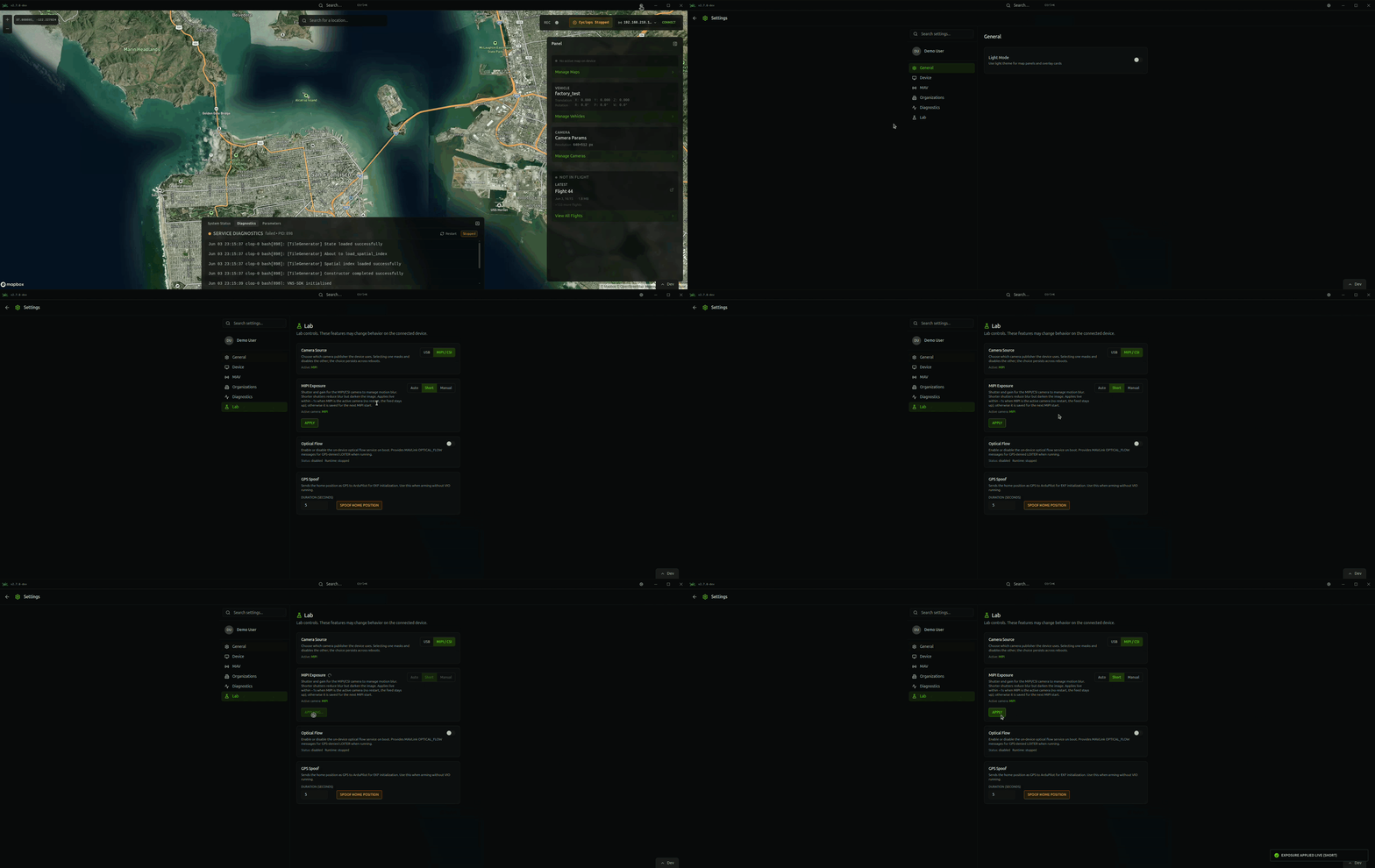
Verify the exposure mode is set to "Auto" or "Short" in the Lab Settings. This setting will change the exposure and is flight ready! If you are comfortable manually changing them, check the Exposure and motion blur section to understand how to configure this.

Exposure and motion blur

Motion blur scales with the shutter (exposure) time: while the shutter is open, a moving aircraft smears the scene across the sensor.

The 3 modes you can select are below:

Mode
Behaviour
Use when

auto

libcamera default AE; may pick long shutters (more blur) in dim light

Stationary / bench testing

short

AE biased toward a short shutter + higher gain (AeExposureMode=Short); still adapts

Light varies during flight

manual

Pins ExposureTime/AnalogueGain (AeEnable=False); hard blur cap, no auto-brightness

Bright, consistent light

Editing exposure from Vozilla (applies live)

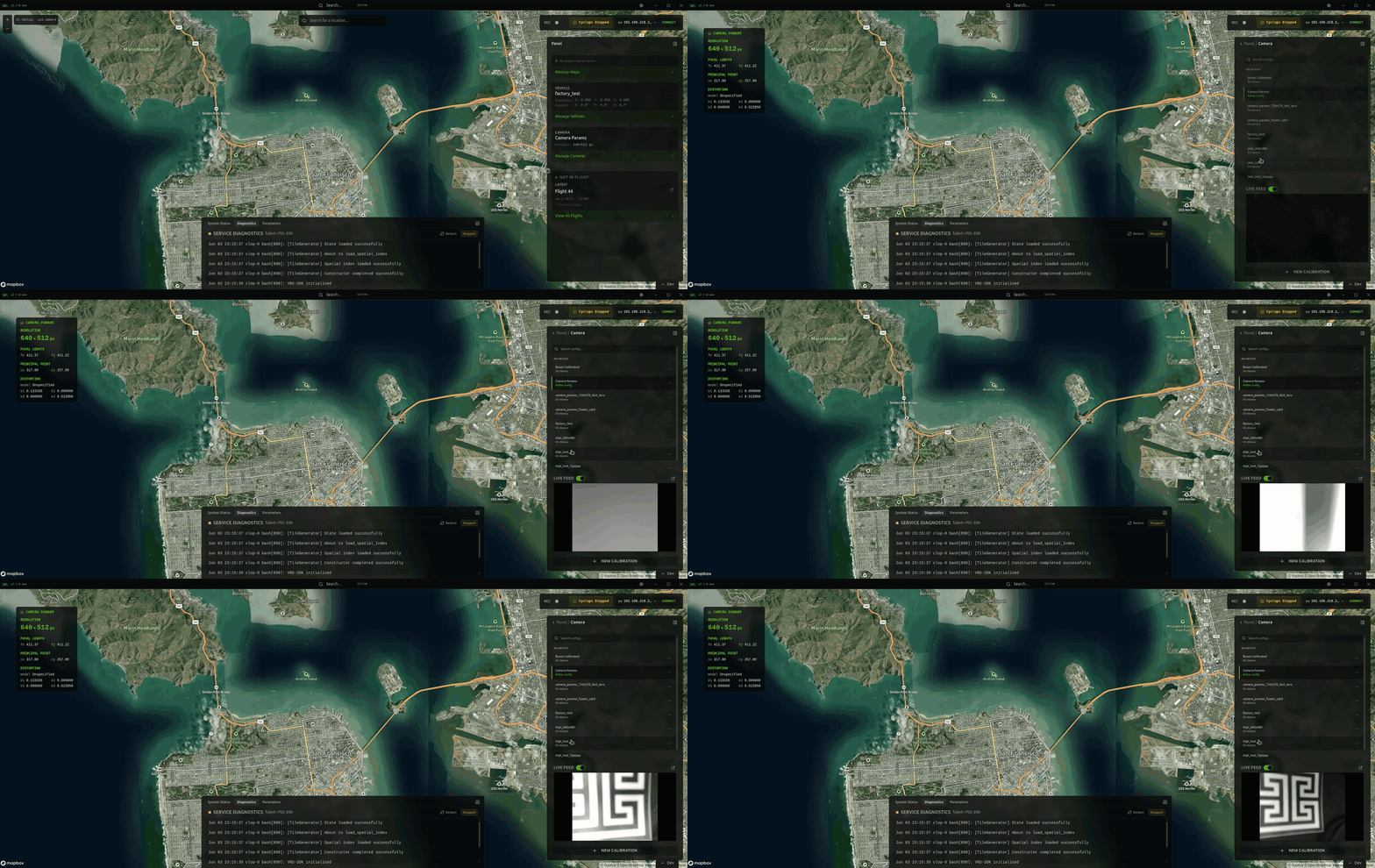
Settings → Lab → MIPI Exposure lets you change the mode and, in manual mode, the shutter (µs) and gain. You can see these changes live within the Live Feed in Vozilla.

Other levers to reduce motion blur

  • Add light — the IMX219 has a small fixed aperture, so short shutters need it.

  • Use a global-shutter sensor (OV9281, IMX296). The IMX219 is rolling shutter; under fast motion it also adds "jello" skew that a short shutter cannot remove — a global-shutter sensor is the hardware fix.

Install Script Flags

Flag
Option
Effect

--sensor NAME

imx219, imx708, imx477, imx296

Overlay/sensor to configure (default imx219)

--connector NAME

CAM0, CAM1

Change the port the camera is connected to (default CAM0)

--no-reboot

Do not reboot after installing (a reboot is required for installation to complete)

--no-activate

Do not active the MIPI service

Example usage of these flags for a Camera Module 3 connected to the CAM1 port:

Command cheat-sheet

Troubleshooting

  • Vozilla shows no camera connected:

    • Ensure you have the MIPI camera connected to the CAM0 port, and the ribbon is firmly seated in the port. Next, ensure that the camera stack is working by running this command:

If this produces an error like this:

Then run the following command to immediately fix it:

  • Live Feed Black:

    • If the live feed is black, you may be on outdated dependencies like theseus-edge-api or Vozilla. Ensure you have updated to the latest versions of both.

Last updated