> For the complete documentation index, see [llms.txt](https://docs.theseus.us/llms.txt). Markdown versions of documentation pages are available by appending `.md` to page URLs; this page is available as [Markdown](https://docs.theseus.us/vozilla-gcs-software/vozilla-app/camera/camera-calibration.md).
# Camera calibration
The Camera Calibration tool in Vozilla lets you generate and save a calibration file (camera intrinsic) for your camera. A good calibration improves the accuracy of Cyclops tracking and reduces distortion, especially near the edges of the image.
#### What you need
* A 7×8 asymmetric circle grid calibration target, found below.
{% file src="/files/9jIZU1cdlLUHxN8zqzdi" %}
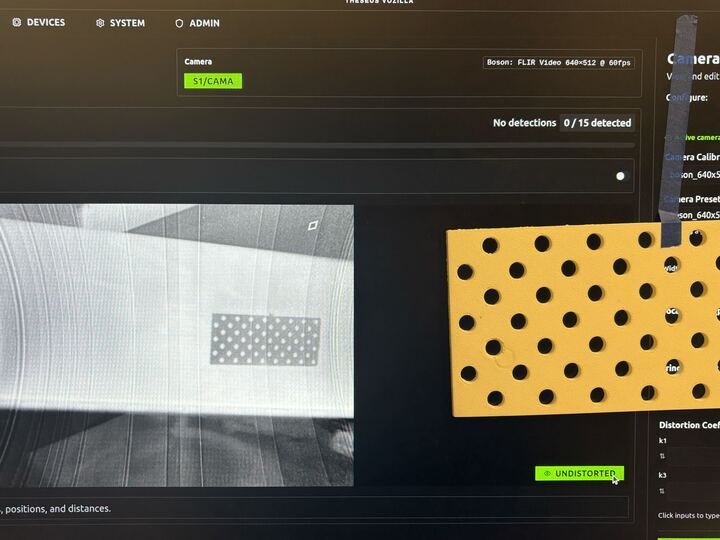
* For thermal cameras, we have found it works best to 3D print the grid and place it on a uniform warm surface so the target is clearly visible. A .STEP file for this grid can be found below.
{% file src="/files/YUxFEpZH5geflfCvGavu" %}
{% hint style="info" %}
Placing the 3D print against a monitor works well for thermal cameras, providing a consistent warm background.
{% endhint %}
#### Capture calibration images
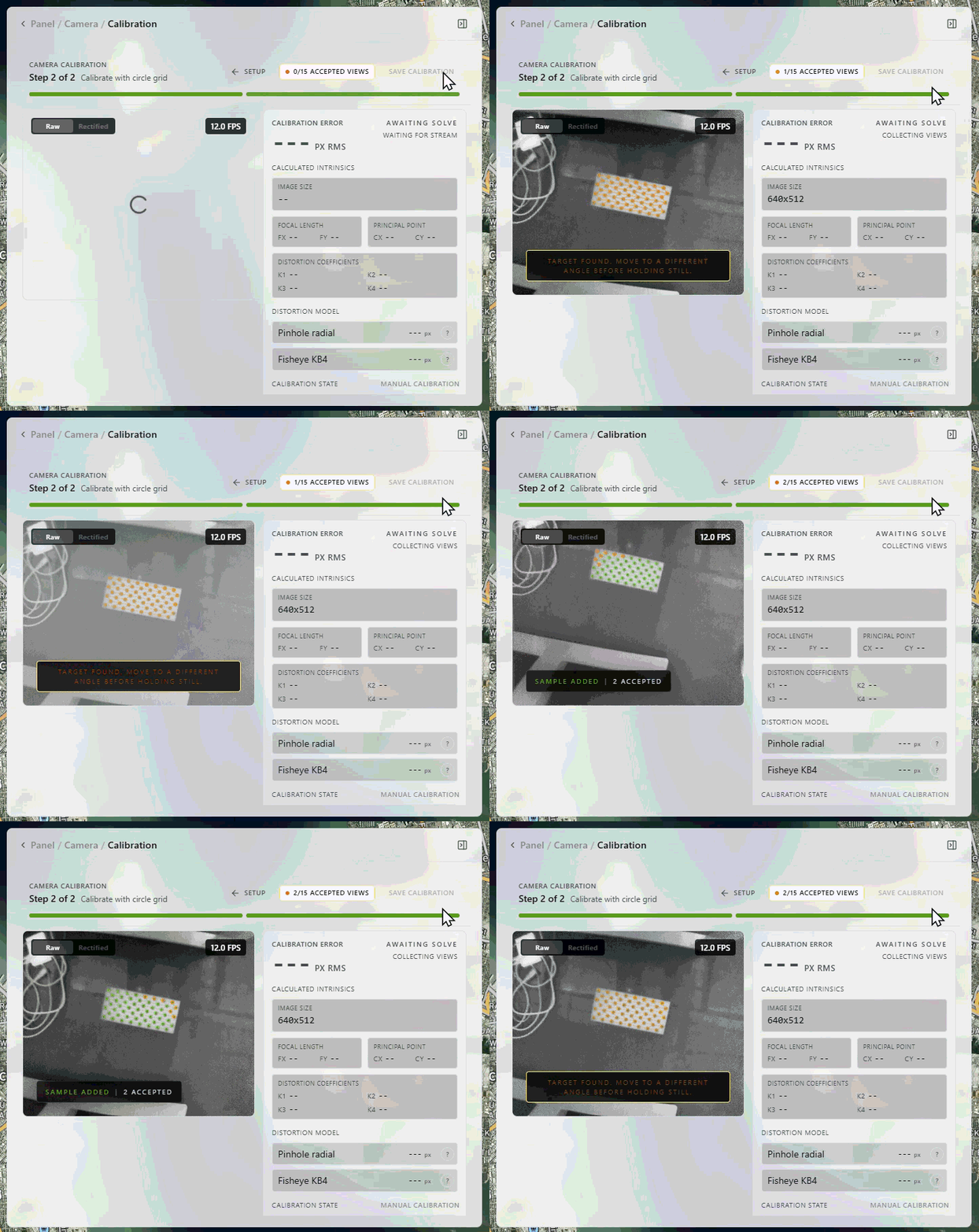
1. Connect your camera and open the Camera Calibration page.
2. Use Capture Frame to record images of the detected grid.
3. Move the target through a variety of:
* angles (tilt and rotate)
* positions (across the full frame, including corners)
* distances (close, medium, far)
For best results, capture 20+ frames in which the pattern is cleanly detected.
{% hint style="warning" %}
If your target is white dots on a black background, enable **Inverted Pattern** so detection works correctly.
{% endhint %}
#### Compute and save
After capturing enough frames, Vozilla will prompt you to compute the calibration. Save it using the default name or a descriptive name (helpful if you switch cameras or lenses later).
#### Verify quality
Use the Distortion toggle (bottom-right of the camera view) to compare the calibrated image to the raw image. A good calibration should reduce warping and keep lines and features looking consistent across the frame.
 {% endhint %}
#### Capture calibration images
1. Connect your camera and open the Camera Calibration page.
2. Use Capture Frame to record images of the detected grid.
3. Move the target through a variety of:
* angles (tilt and rotate)
* positions (across the full frame, including corners)
* distances (close, medium, far)
For best results, capture 20+ frames in which the pattern is cleanly detected.
{% endhint %}
#### Capture calibration images
1. Connect your camera and open the Camera Calibration page.
2. Use Capture Frame to record images of the detected grid.
3. Move the target through a variety of:
* angles (tilt and rotate)
* positions (across the full frame, including corners)
* distances (close, medium, far)
For best results, capture 20+ frames in which the pattern is cleanly detected.
.gif)
.gif)