> For the complete documentation index, see [llms.txt](https://docs.theseus.us/llms.txt). Markdown versions of documentation pages are available by appending `.md` to page URLs; this page is available as [Markdown](https://docs.theseus.us/vozilla-gcs-software/vozilla-app/quick-start.md).
# Quick Start
This page describes the core features of the Vozilla app. It will cover how to log into your Theseus account, connect to Cyclops in Vozilla, and update Cyclops to the newest version.
{% hint style="info" %}
Make sure the Vozilla GCS app is installed on your Windows/Linux laptop before proceeding. If it is not installed, click [here ](https://dashboard.theseus.us/downloads)to download.
{% endhint %}
## Log In
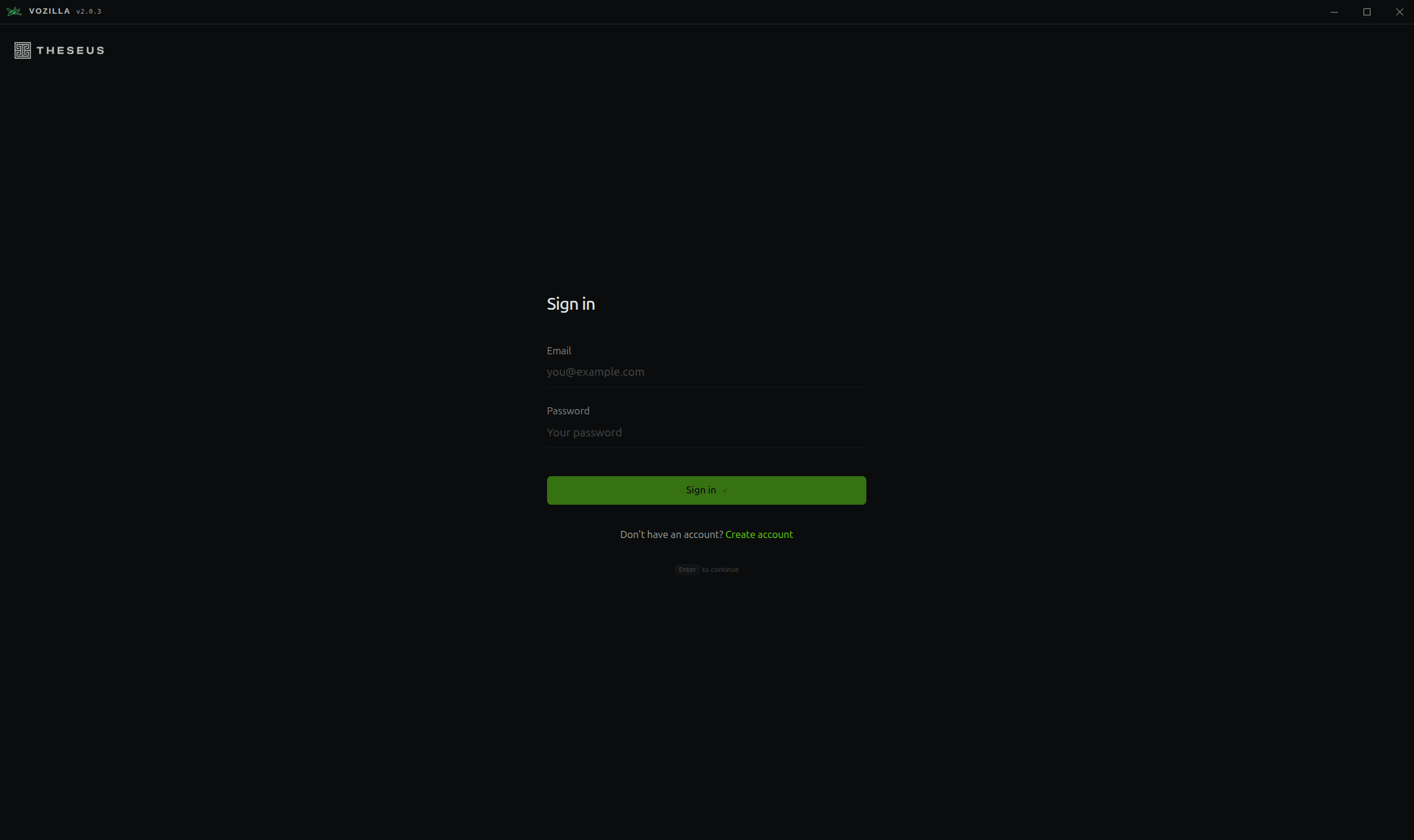
Use your Theseus account to log into Vozilla. If you do not have an account, please click **Create account** before proceeding.
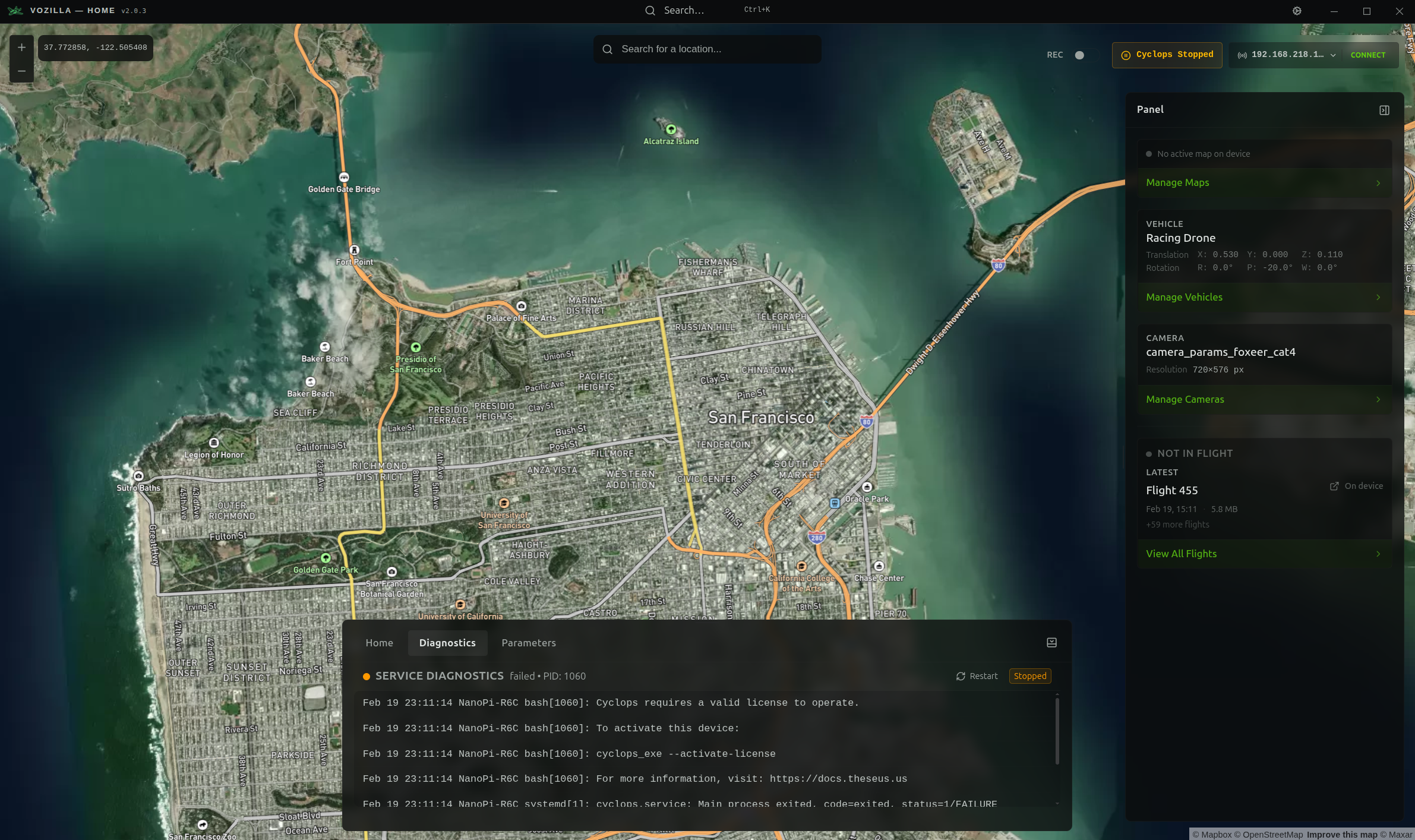
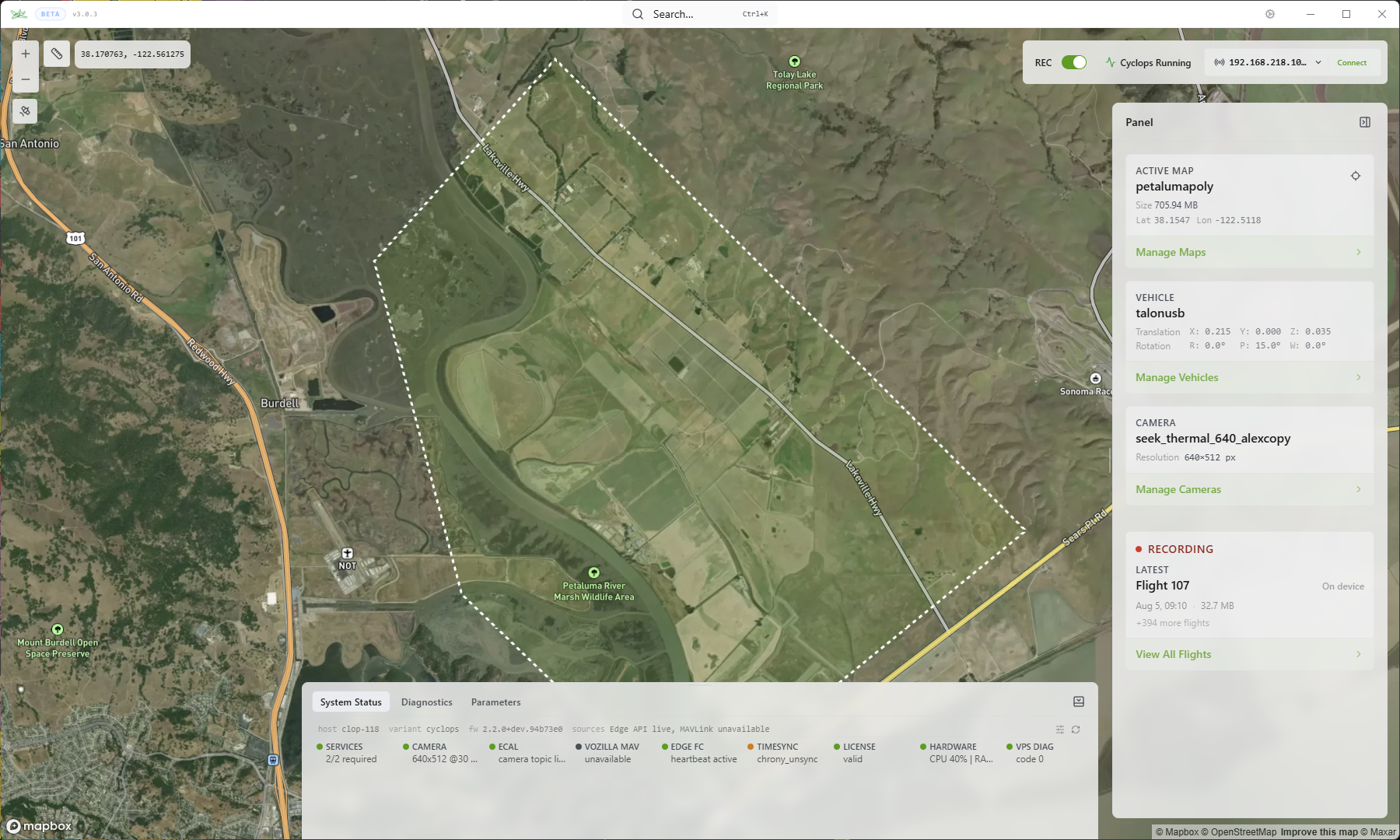
Once logged in, you will be taken to the home page. This is where you will find everything you need to fly using Cyclops.
{% hint style="info" %}
**Ctrl + R** will reload Vozilla from anywhere in the app and return you to the home screen.
{% endhint %}
## Connecting Cyclops
Vozilla supports connection over Ethernet and MAVLink to the Cyclops computer. You will need to **edit your computer Ethernet network interface** configuration in order to establish a connection.
By default, the edge device is configured to a static IP address of `192.168.218.100`. If you change this address, your network interface settings will need to match the subnet of the different IP address.
{% hint style="info" %}
Ethernet and MAVLink connections are not interchangeable and have different functionality.
{% endhint %}
{% tabs %}
{% tab title="Windows" %}
Here are the IP settings for the network interface:
* IP address: 192.168.218.10
* Subnet mask: 255.255.255.0
* Default gateway: 192.168.218.1
* DNS: 8.8.8.8 or 1.1.1.1
On your Windows computer:
* Open Windows Settings (Windows key + I)
* Click on "Network & Internet"
* Click on "Ethernet"
* Click on your network adapter
* Under "IP assignment", click "Edit"
* Select "Manual" and turn on IPv4
* Enter the IP settings shown above
* Click "Save"
{% endtab %}
{% tab title="Linux" %}
Here are the IP settings for the network interface:
* IP address: 192.168.218.10
* Subnet mask: 255.255.255.0
* Default gateway: 192.168.218.1
Create a new Ethernet network interface with these IPv4 settings in your settings app.
{% endtab %}
{% endtabs %}
When a Cyclops system is connected, Vozilla will show the "*Cyclops Running/Stopped*" indicator in the corner. You will also be able to see system status info in the bottom pannel on the home page.
### Updating Cyclops
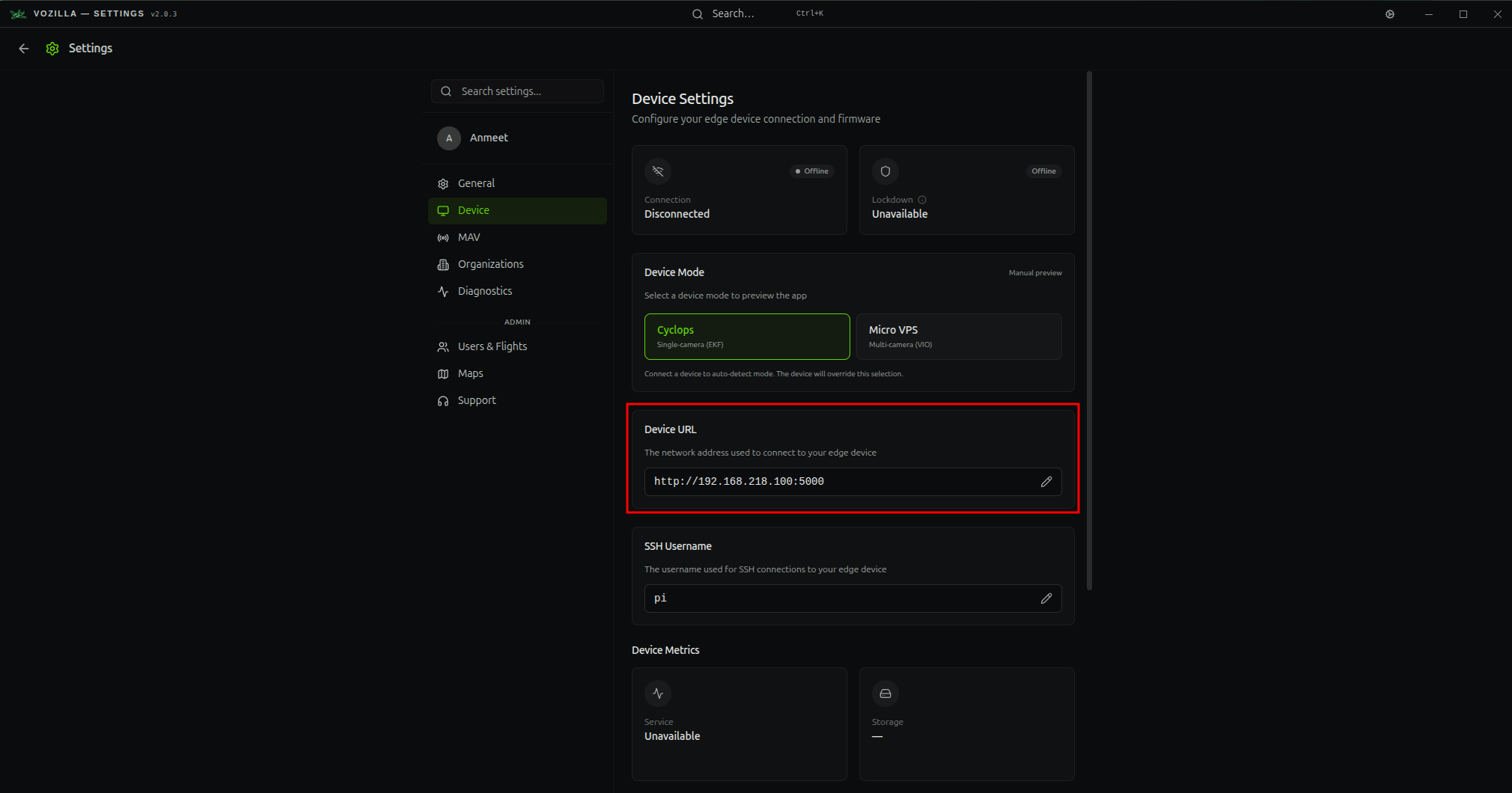
To update your Cyclops system to the latest version, navigate to *Settings>Device>Firmware*. Here you can also see your system's current version.
### Changing Cyclops IP address
If your Cyclops computer requires a specific IP address different from the default (`192.168.218.100)`, you can edit in Vozilla. Navigate to *Settings>Device* and type your IP address in the *Device URL.*