> For the complete documentation index, see [llms.txt](https://docs.theseus.us/llms.txt). Markdown versions of documentation pages are available by appending `.md` to page URLs; this page is available as [Markdown](https://docs.theseus.us/vozilla-gcs-software/vozilla-app/settings/recording-control.md).
# Recording control
This page outlines the two types of controls available for flight recordings in Vozilla.
## Start/Stop recording
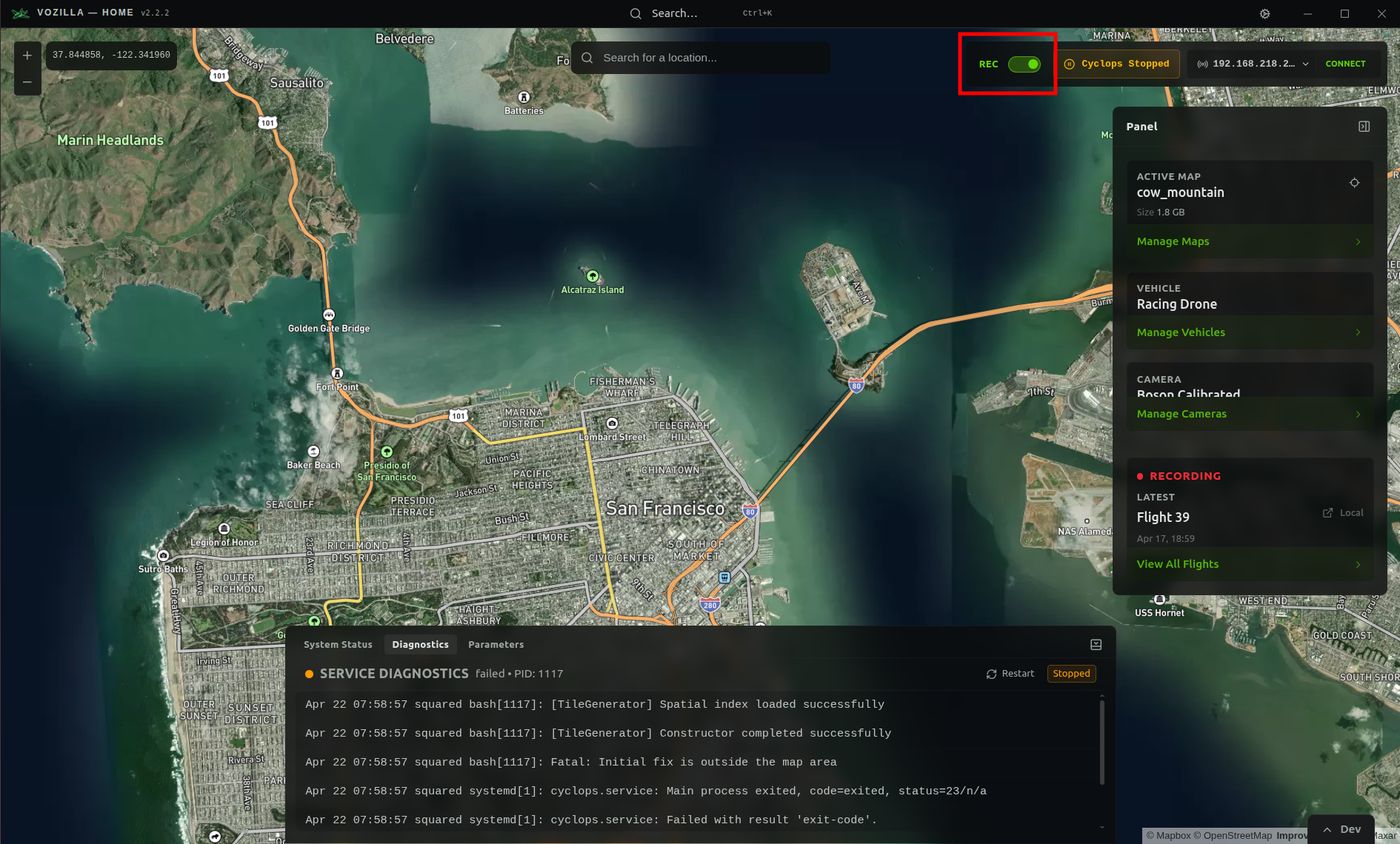
To start or stop recording, use the **REC** toggle on the home page of Vozilla.
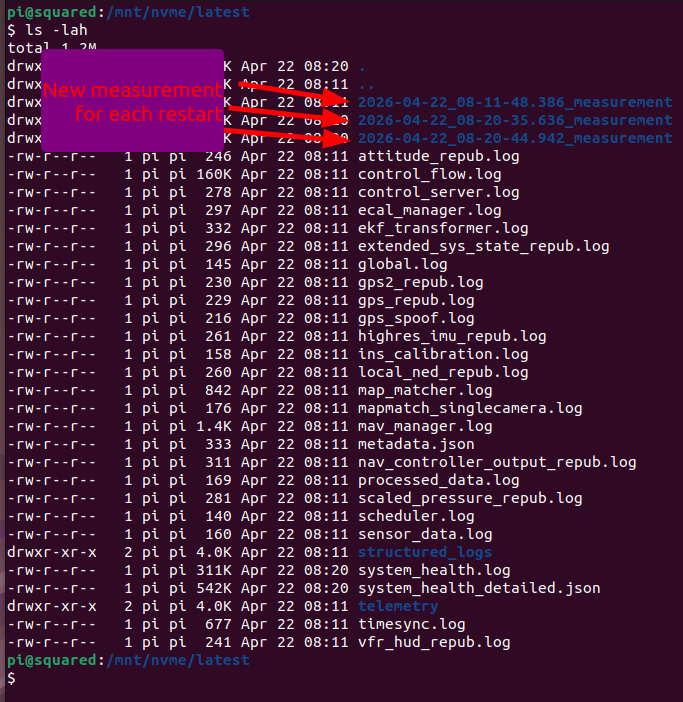
This will either stop a current recording or, if one is not already running, restart the recording service. Doing this creates a new eCAL measurement recording within the log folder for the current boot:
## Automatic recording
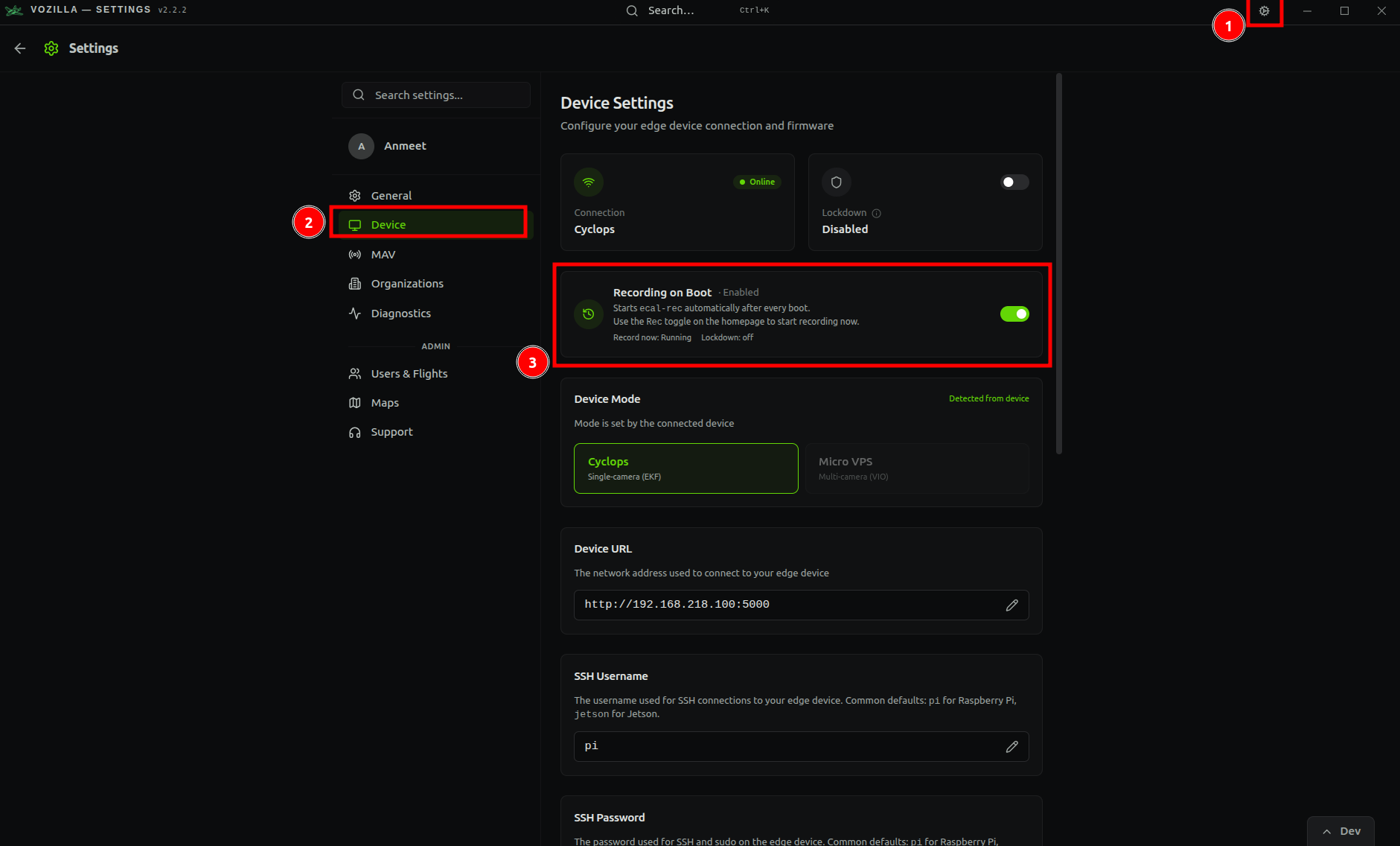
By default, Cyclops is configured to start a new recording on boot, meaning it will begin recording as soon as the device is powered on. If this is not your desired behavior, navigate to *Settings>Device* and disable *Recording on Boot*.
{% hint style="warning" %}
Note that if this is turned off, the recording must be started manually before a flight using the **REC** toggle on the home page.
{% endhint %}
## Clearing log data
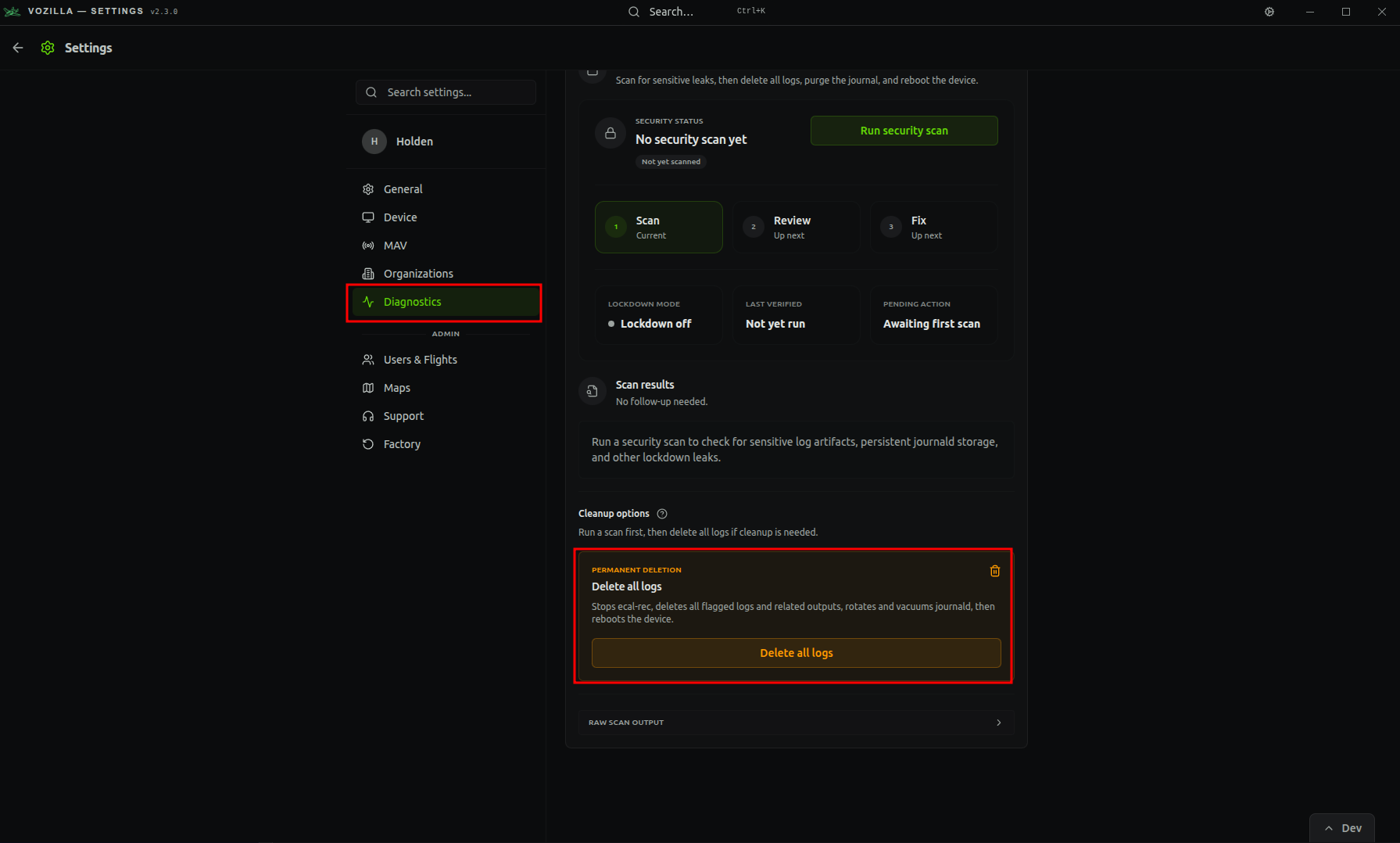
Cyclops records a variety of data to logs that are saved on your storage device. Users may want to delete old or irrelevant logs to clear space for new recordings. To clear all logs from your device, navigate to *Settings>Diagnostics* and click **Delete all logs.**